Showing posts with label BIRT. Show all posts

19 March 2010

BIRT Report -Connecting to a Database

ฺBIRT Report นี้สามารถต่อกับฐานข้อมูลได้ เพื่อนำข้อมูลมาแสดงในตัว Report ได้ โดยวิธีดังนี้...

การสร้าง Data Source เพื่อใช้ข้อมูลจาก Database

ในการเ้ข้าถึงข้อมูลของ BIRT Report จะต้องใช้ BIRT data source
Data source คือ แหล่งข้อมูลที่จะนำมาใช้ใน Report ใน 1 Report สามารถสร้างได้หลาย ก้อน
ข้อมูลนั้นมาจาก Database หรือ Flat file ได้

  • Accessing data using JDBC
    A report can access data from any database or other data source that uses a
    JDBC driver. Most relational databases, such as Oracle, SQL Server, or
    MySQL, use JDBC drivers. Make sure you have the appropriate JDBC driver for the database that you want to access.
  • Creating a JDBC data source
    1.ในหน้าต่าง Data Explorer > Data source คลิกขวา เลือก New Data Source
    2.เลือก JDBC Data Source ใน list


    3.จะได้หน้าต่าง...
    ในช่อง Driver Class ให้เราเลือก Driver ของ Database เรา มีรูปแบบดังนี้
    jdbc:odbc:
    หรือ จะ Browse หาก็ได้ ให้เข้าไปที่ Manage Driver
    *ถ้ายังไม่มี JDBC Driver คุณต้องไปโหลดมาติดตั้งเอง
    ในช่อง
    Database URL ก็ให้นำ link ที่เชื่อมไปยัง Database มาใส่ เช่น
    java:comp/env/jdbc/MyDataSource

    ในช่อง
    username,password ใส่ username,password ของ Database ลงไป

    เสร็จแล้วก็ลอง
    Test Connection
    เมื่อทดสอบผ่านแล้ว Finish ไปได้เลย เราจะได้ Data Source มา 1 ก้อน
    เป็นอันสำเร็จ ตอนนี้เราต่อ Database ได้แล้ว ทีนี้ก็สามรถใช้ข้อมูลที่มาจาก Database ได้แล้ว


การสร้าง Data Set นั้น ก่อนจะสร้าง Data set ได้ก็ต้องสร้าง Data source มาก่อนนะคับ
Data set นี้ก็เป็นที่อยู่ของ Table or entity สามารถเลือกมาได้หลายวิธี ด้วยกัน แต่ส่วนมากจะใช้คำสั้ง sql ในการดึงข้อมูลมาใช้ใน Report
  • Build a Data set
    1.ในหน้าต่าง Data Explorer > Data source คลิกขวา เลือก New Data Source
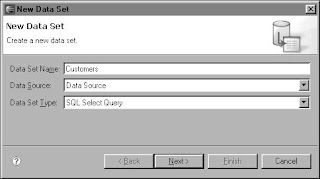
    ในช่อง Data set name ให้ใส่ชื่อของ Data set
    ในช่อง Data source ให้ใส่ชื่อของ Data source
    ในช่อง Data set type เลือกรูปแบบ SQL select query(ใช้คำสั่ง sql ในการดึงข้อมูล)
    เลือกข้อมูลได้แล้ว กด Finish เป็นอันเสร็จสิ้น
เพียงเท่านี้ก็จะได้ข้อมูลจาก Database มาใช้ใน Report เรียบร้อย...

17 March 2010

BIRT Report-Using a Chart

Chart คือ แผนภูมิภาพ ใน birt report มีให้ใช้มากมายหลายรูปแบบ

สามารถนำข้อมูลจาก Database มาแสดงเป็น chart ได้
คำอธิบายว่า chart แต่ละแบบเอาไว้ใช้งานอะไร

Bar, cone, line, To summarize data into multiple sets of risers in the
pyramid, tube chart.

Area, difference To summarize data into multiple areas in the chart.
Bubble To identify bubbles using the legend.
Meter To plot multiple meters.
Alternate meter To plot multiple dials.
subtype

Pie To plot multiple pies.
Scatter To plot multiple x-y value pairs.
Stock To plot multiple sets of candlesticks.


ตัวอย่าง การใช้ pie chart
ในส่วน select data สามารถนำข้อมูลจาก Data set ที่เราสร้างขึ้นมาใส่ให้แสดงได้


ในส่วน use Data from ก็ให้เลือก Data set ที่ต้องการใส่
ในส่วน Slice size definition ก็เลือกส่วนของขนาดข้อมูลใส่

preview


16 March 2010

Installing eclipse(birt) on Ubuntu

สำหรับวันนี้งานหนักหน่อย ลงโปรแกรม eclipse(birt report) ที่ต้องไปเลือก install อีกที
อันดับแรกเราต้องเปลี่ยนแหล่ง Downloads
  • วิธีเปลี่ยน Software Sources ในการขอไฟล์ เพื่อให้เร็วในการ update software
    System > Administration > Software Sources
    ที่ช่อง Download From: ให้เราเปลี่ยนไปเป็น Thailand > ku.ac.th


  • วิธี Install eclipse(birt report) on Ubuntu 9.12
    Applications > System tools > Ubuntu Tweak > applications >เลือก eclipse >Apply


    รอมัน update&Install จนเสร็จ

    พอเสร้จแล้วเราจะต้อง update โดยการใส่ link เอง
    เข้าโปรแกรม eclipse จะอยู่ที่ Applications > programming > eclipse
    ไปที่
    Help > Install new software ... จากนั้นให้ add

    Name : Galileo
    Location: http://download.eclipse.org/releases/galileo
    เลือก Business,Database,web Xml เฉพาะจำเป็น

    Name: BIRT
    Location: http://download.eclipse.org/birt/update-site/2.5
    เลือก report sdk,wtp sdk

    Name: BIRT Update Site
    Location: http://download.eclipse.org/birt/update-site/2.5-interim/
    เลือก report sdk,wtp sdk

    Name: EPP Packages Repository
    Location: http://download.eclipse.org/technology/epp/packages/galileo


    ทั้งหมดที่ update นี้ เพื่อใช้ eclipse ได้ลื่น
    ไหล ปรกติแล้วถ้าไป Download
    มาจาก website ของ eclipse เวลาที่เอามาใช้งานบน ubuntu จะหน่วงๆ(ทำนองว่ามีบัค)
    และทำเพื่อให้ใช้งาน Birt ในการทำ Report ได้ ตอนนี้ก็เป็นอันสมบรูณ์...

11 March 2010

BIRT Report -Property Editor

วันนี้ได้ศึกษา BIRT เรื่อง...
  • Creating Styles สร้างเพื่อใช้กับ การตกแต่ง จัดตำแหน่งต่างๆ ขนาดตัวอักษร สี ,etc.
Property Editor
Property Editor คือ การปรับแต่งต่างๆ ของส่วน palette อันได้แก่ Label,Text,Data element
  • Add conditions... for use!
  • การทำ Binding(อยู่ในส่วน Table) สามารถเพิ่ม ข้อมูล, Aggregation เพื่อช่วยในการ คำนวณบางอย่างได้
  • การทำ Hiding(Visibility) ตามเงื่อนไขเพื่อซ่อนข้อมูล เช่น row["ordertotal"] <>
  • การทำ Sorting เป็นการเรียงจากมากไปน้อย น้อยไปมาก ใช้ได้กับ String , Number
  • การทำ Map เช่น ข้อมูลเกรด จากตัวเลข 4 3 2 1 0 ต้องการให้แสดงเป็น A B C D F ใน Report
  • การทำ Highlights เป็นการแต่งสี ใช้งานแบบกำหนด conditions
  • การทำ Filters กรองเฉพาะข้อมูลที่สนใจออกมาเท่านั้น ถ้าไม่อยู่ในเงื่อนไขของ Filter จะไม่ถูกนำมาแสดง
  • การทำ Groups จัดกลุ่มข้องข้อมูล มีวิธีการจัดกลุ่มหลายรูปแบบ สามารถกำหนดเงื่อนไข sort,filter ได้อีกด้วย ส่วนของ Group ประกอบด้วย Header Detail Footer
Aggregation Data
ใช้ในส่วนของการคำนวณต่างๆ มี function ให้ใช้งานมากมาย
  • Aggregation function เช่น SUM,AVG,COUNT,etc... ใช้ร่วมกับ Table,Group ได้ เช่น นับจำนวนบรรทัดข้อมูล , หาค่าเฉลี่ยของข้อมูล
  • Filtering aggregate data สามารถกรองเฉพาะข้อมูลที่ต้องการได้
และแล้วก็หมดไปอีก 1 วัน...

เรียนรู้ ธรรมชาติ ด้วย ธรรมมะ...

10 March 2010

BIRT Report-Learning the Basic

เรื่องที่ได้ศึกษาวันนี้...
  • เครื่องมือที่ใช้ในการสร้าง Report เช่น Table,Grid,Label,etc.
  • Delete Table,Grid,Label,etc.
  • องค์ประกอบของเครื่องมือที่ใช้งาน เช่น Table ก็จะมี Header Detail Footer
  • Inserting Data set field , Inserting a computed field
  • Inserting an image , Resizing an image
  • Textual Element ความสามารถ และการใช้งาน เช่น Data,Text,Label,Dynamic Text
  • Formatting Data เช่น number,String,Date

09 March 2010

About BIRT reports

About BIRT reports

A BIRT report is a structured document that displays data from an external
information system, such as a database or application. Data in the report is
organized and formatted so that it is meaningful and useful to the person
who reads the report. A BIRT report is not a document that you type, like an
essay or research paper, although you could use BIRT Report Designer to
create such documents.
Using BIRT Report Designer, you can create operational reports, such as a bill
of materials, a purchase order, or an invoice. You can also create reports that
provide real-time information about business performance, such as the
number of calls handled by your customer service organization, the number
of problems handled, categorized by levels of complexity, and the number of
repeat calls made by the same customer. You can use BIRT to create clientfacing
reports, such as account statements and transaction details. Any time
that you need to gather, analyze, summarize, and present data from an
information system, a report is the solution.

Installing BIRT
องค์ประกอบของการติดตั้ง..
  • Eclipse Platform 3.3.1
  • Data Tools Platform (DTP) 1.5.1
  • Eclipse Modeling Framework (EMF) 2.3.1
  • Graphical Editing Framework (GEF) 3.3.1
  • Web Tools Platform (WTP) 2.0.1
  • Java Development Kit (JDK) 1.5
4 From BIRT Downloads—Latest Releases, choose 2_2_1.
BIRT Downloads for build 2.2.1 appears.
5 On BIRT Downloads for build 2.2.1, perform one of the following tasks:
■ If you are using Windows, choose the following archive file in Report
Designer Full Eclipse Install:
birt-report-designer-all-in-one-2_2_1.zip
■ If you are using Linux, choose the following archive file in Report
Designer Full Eclipse Install for Linux:
birt-report-designer-all-in-one-linux-gtk-2_2_1.tar.gz
Eclipse downloads appears. This page shows all the sites that provide this
archive file.
6 Choose the download site that is closest to your location.
The BIRT Report Designer all-in-one archive file downloads to your system.
7 Extract the archive file to a hard drive location that you specify.
The extraction creates a directory named eclipse at the location that you specify.

To test the BIRT Report Designer installation, start Eclipse, then start BIRT
Report Designer as described in the following procedure. BIRT Report
Designer is a perspective within Eclipse.

How to test the BIRT Report Designer installation
1 Start Eclipse.
2 From the Eclipse window menu, choose Open Perspective➛Report
Design. If Report Design does not appear in the Open Perspective
window, choose Other. A list of perspectives appears. Choose Report Design.
Eclipse displays the BIRT Report Designer perspective.

วันนี้ได้ศึกษา BIRT Report เรื่อง...
1. Create a new project
2. Create a new Report
3. Build a data source
4. Build a data set
5. Insert table,Grid
6. Sort the data : String,number
7. Format the report
8. Create a report title